Importing SIF into a quote
Introduction
SIF files are the common way to import/export quotes between furniture apps and softwares : 2020 CAP/WorkSheet, Project Matrix, FCC, CORE, AllSteel Synergy / Smart Quote, etc. Here’s the way to use them with Automator.
There’s is a video at the bottom of this topic to give you an overview of the process.
SIF compatibility
We might think SIF files are all based on a common standard, which is unfortunately not the case. In fact, in 2020 Worksheet, there’s tens of SIF subtypes (CAP Studio, HNI Companies, Design Express Transfer, etc.). In Project Matrix, there’s also few SIF subtypes. Here’s the way you should always import/export your SIF with those softwares to make them compatible with Automator :
2020 WorkSheet
Export your quote to SIF and choose the Teknion subtype.
Project Matrix
Simply save your file, SIF version 3 and 4 are both working fine.
A quick trick : if someone sent you a SIF made in WorkSheet that hasn’t been exported as Design Express Transfer, you can re-open it with Project Matrix and re-save it. It should fix the file to make it compatible with Automator.
SIF Import in Automator
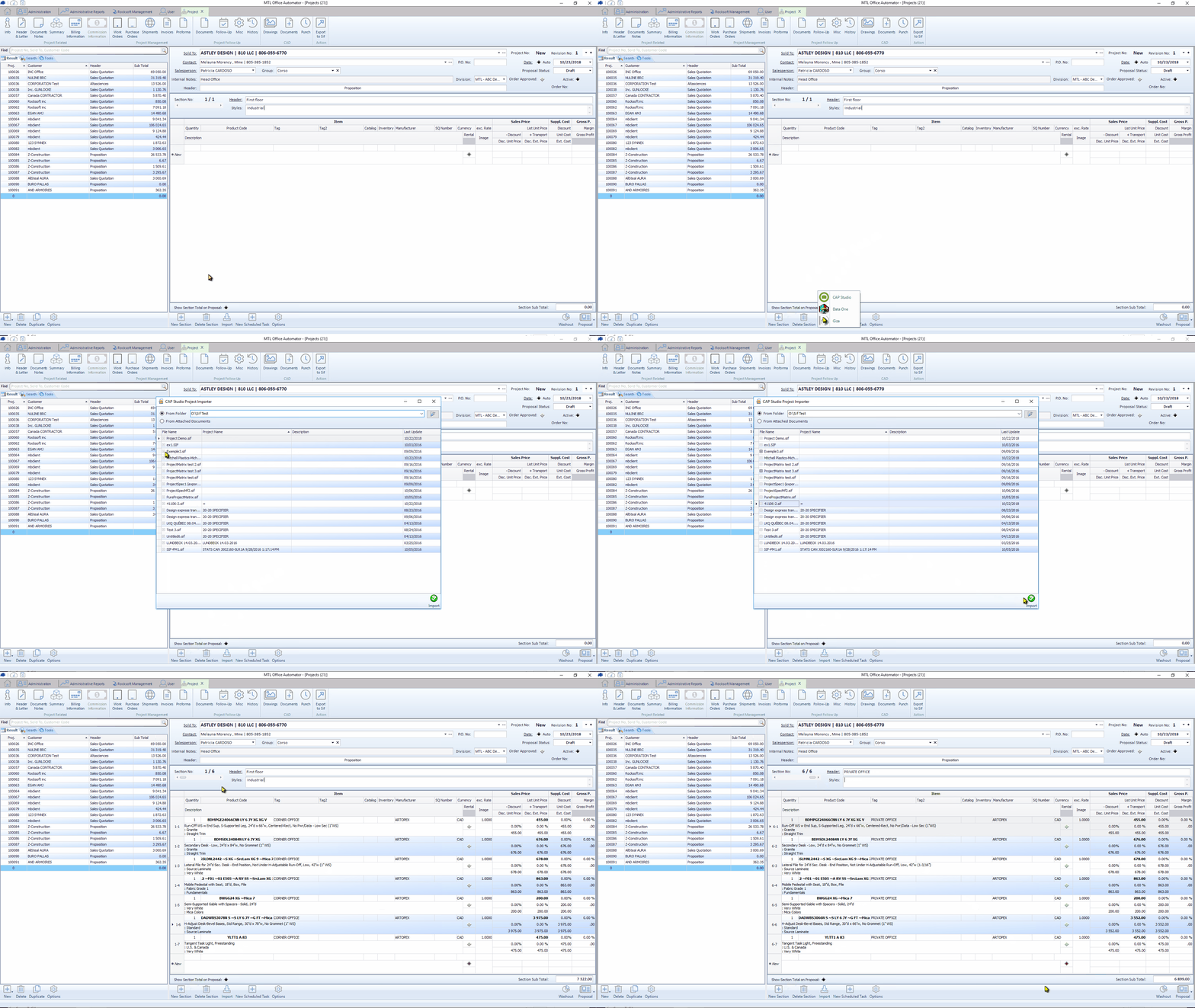
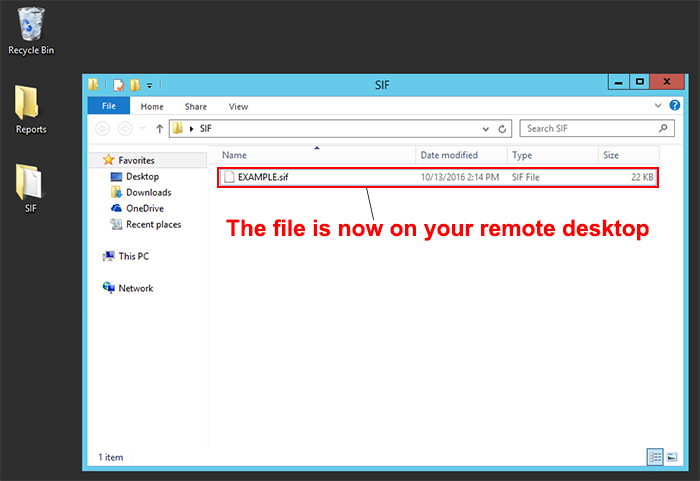
Step 1 | Before everything else, we need to bring the SIF file on our remote desktop session. To do so, you can consult this article about How to transfer files to the terminal.
For this example, let’s assume we already transfered Example.SIF on our remote desktop in the folder SIF.
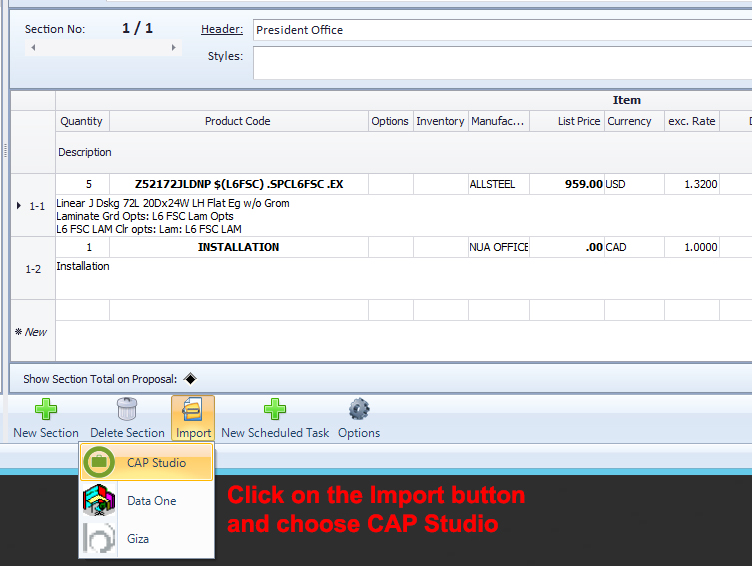
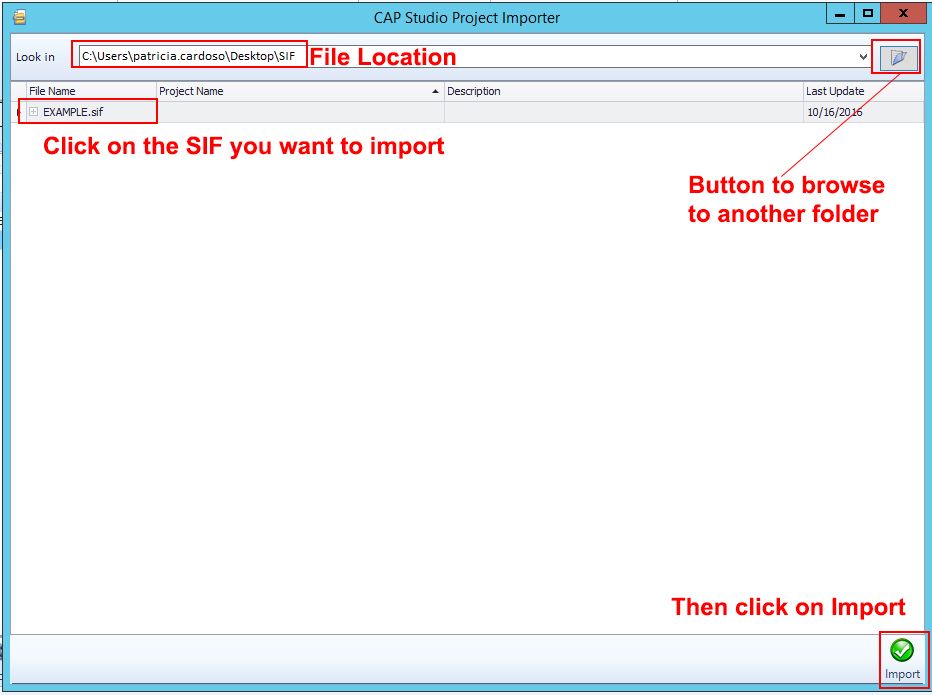
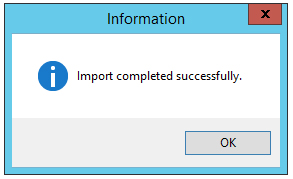
Important : You must always double-check that your SIF has correctly transfered, even though you see this message box.
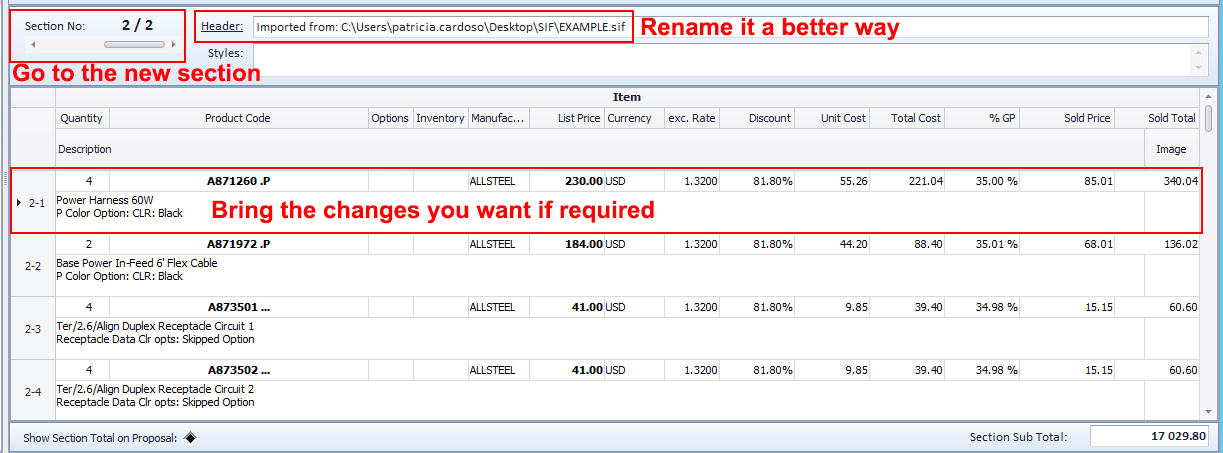
Step 5 | Automator will keep the focus on the section you were in before the Import. However, you’ll see that a new section has been created. Just go to this section to see the products list imported.
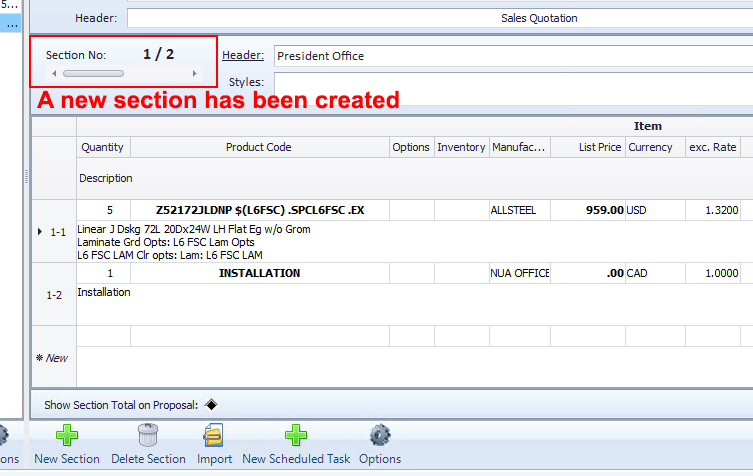
Important : Automator will apply all the information (including the discount and %GP) that were specified in the SIF file. It won’t apply auto-discount and auto-GP set in Automator.