
How to create a rental Project with recurring invoices
In automator, in order to create a rental recurring Project, you need the following:
(you will see details for each requirement below)
- A product called “Rental” or “Location” (note it can be labelled the way you want)
- A Project that contains the Product described above
- Add items on the Project for rental
- A Scheduled task, to set the frequency and which user(s) will get the Notification.
Now, let’s see theses steps in details.
1. Creating the Product
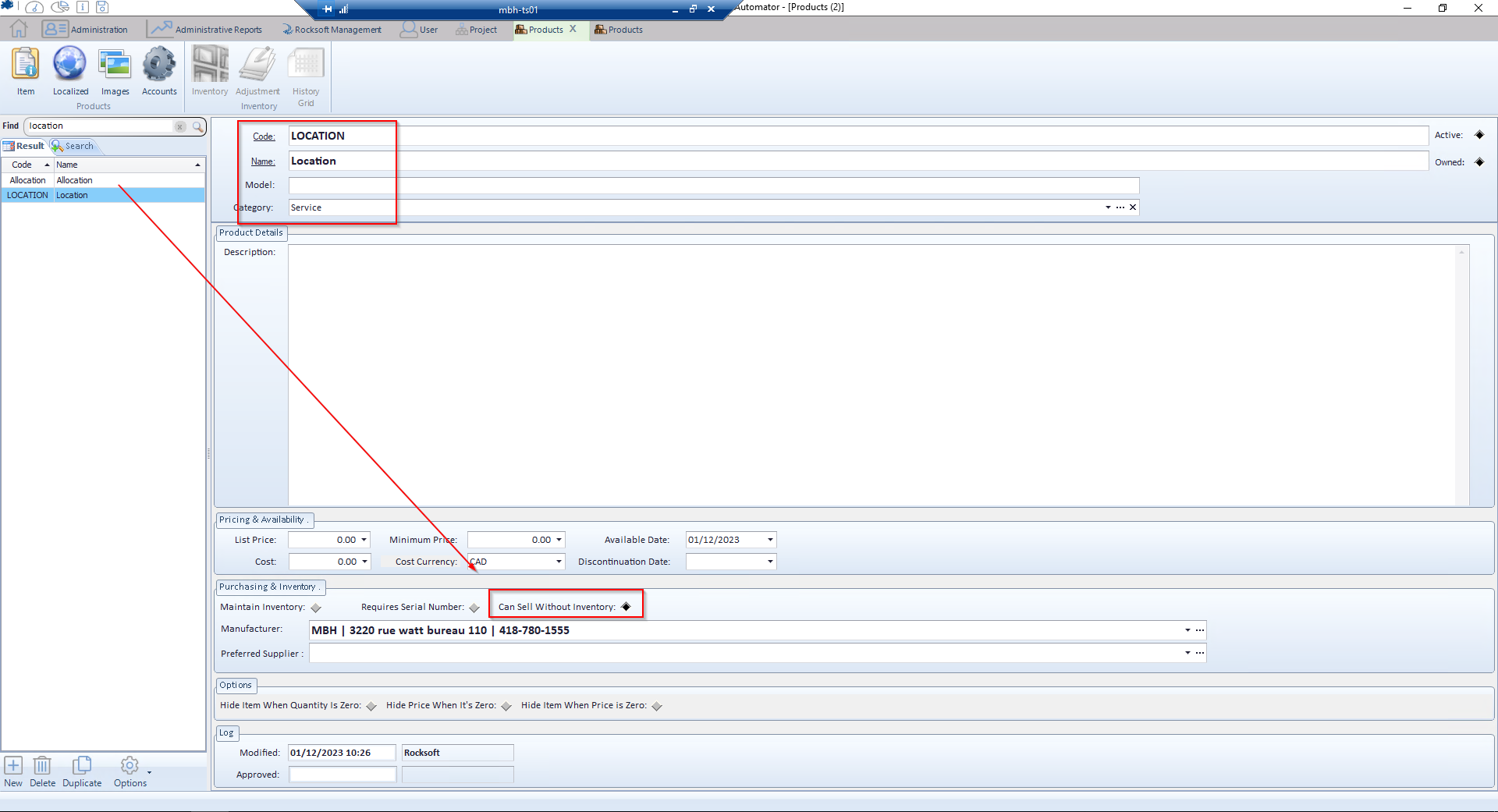
You go into Products, you click New (lower left corner), and you just have to label it the way you want and do not forget to check the option : “Can sell without inventory”
2. Creating the Project
Here, we need to create the Project that will be used for the recurring invoicing.
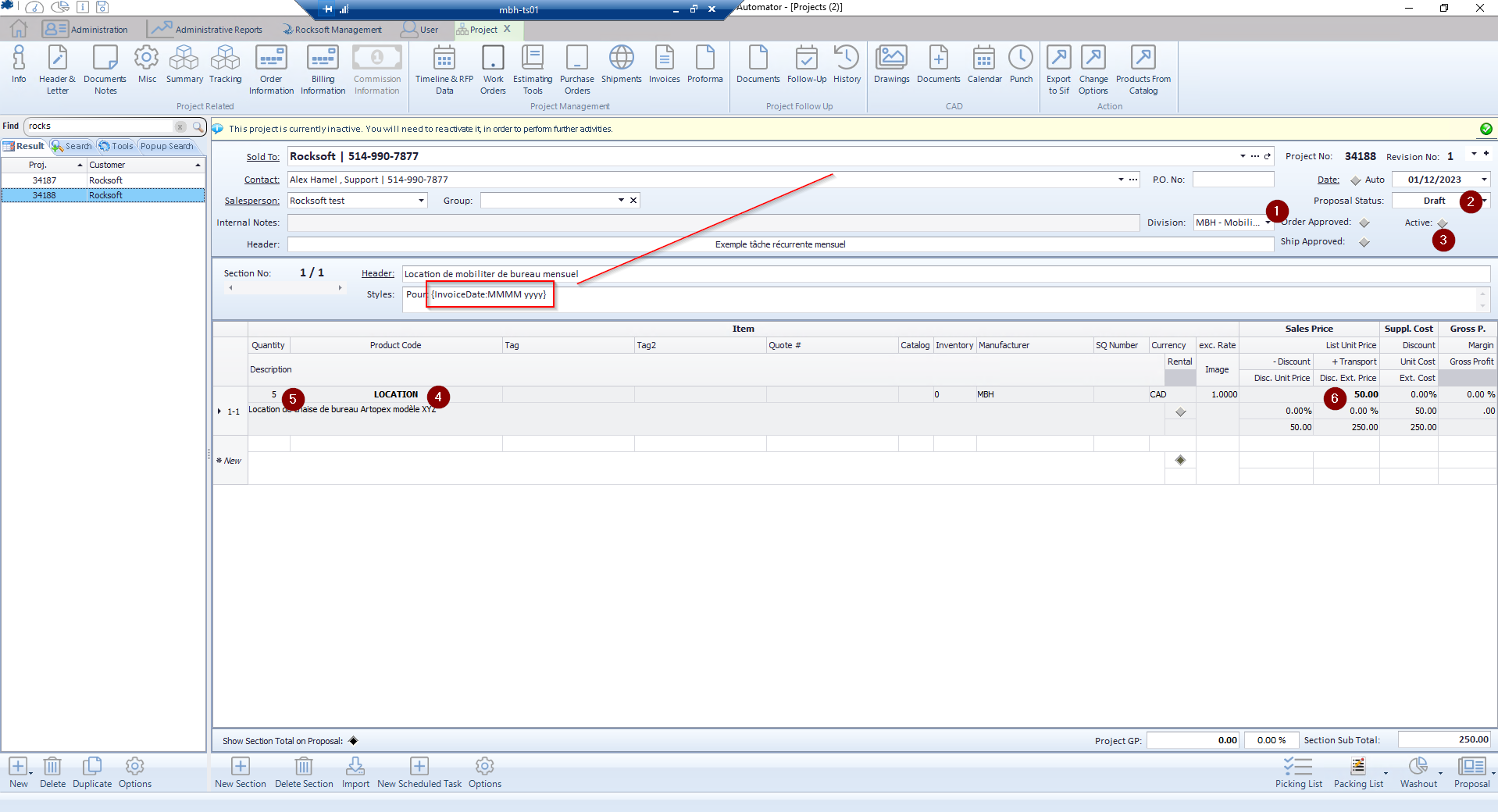
You do not need to approve (1) the Project, you can leave it as Draft (2) and you can set it up as Inactive (3) as well in order to not see it in your current and active projects.
You insert the Product Location (4) (or the label you gave it), the quantity (5), and the price per quantity (6).
You also need to insert the tag as shown in the Styles of the Section.
This will add the date of invoicing automatically and the output will be in the language set for the Customer
3. Adding items in the Project for rental
Here, we need to have a specific Warehouse (which is virtual, indeed)
This Warehouse will have all items rented in progress. A report about this is available to get the inventory of these items since you still own these items.
To make a new Warehouse, go under the tab Administration, then icon Warehouse (4th from the left)
Then click New (lower left corner) and give it a name.
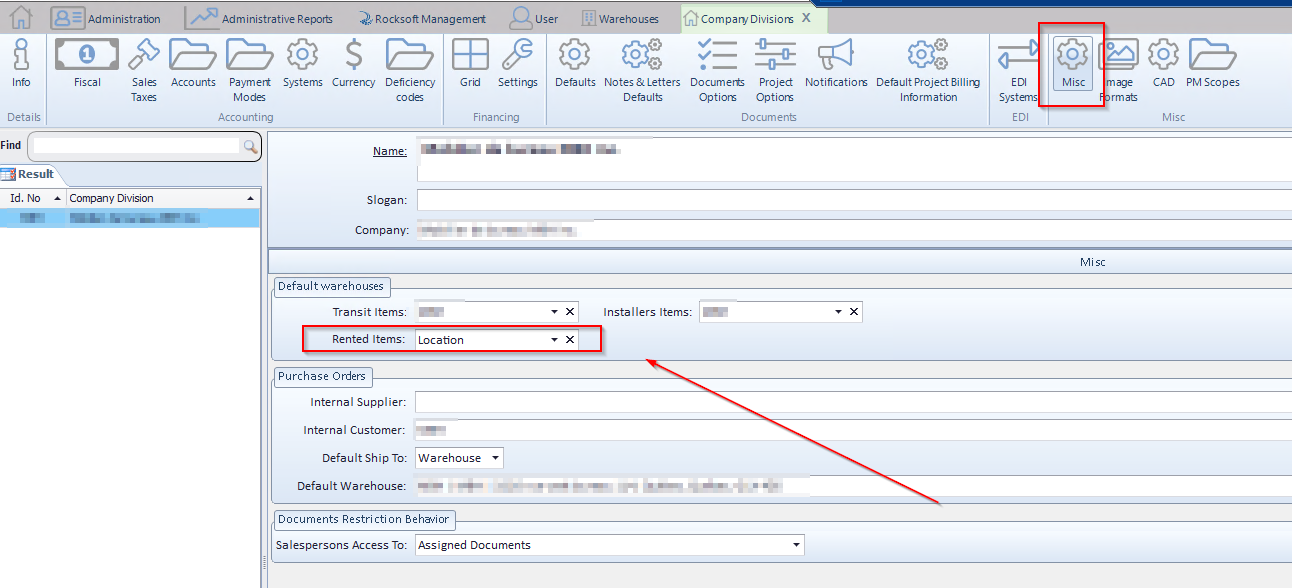
Once created, we need to define it as the default Warehouse for rented items
Tab Administration, then icon Divisions, then icon Misc.
4. Setting up the recurring option using Scheduled task
This is where we define the frequency of the recurring and which user(s) will received the notification upon the opening of Automator.
Go in Scheduled task and click New
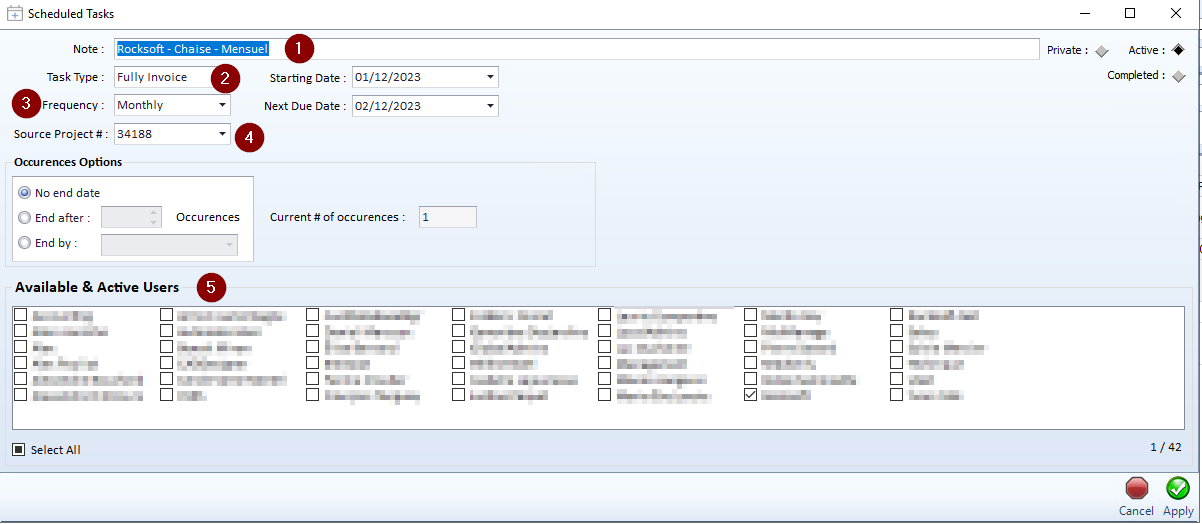
- you give a label to this task (having the name of you Customer in the label is a good advice)
- Task Type :
- set it to Fully Invoice
- Select the desired frequency
- Identify which Project# to invoice
- Select the user(s) that needs to see this Scheduled task when they open Automator
Now that you have a template Project for recurring (above), we strongly recommend you to duplicate this project every time you make a rental, and you can add the items in it, just like a regular sale, except you set the prices of your items based on the rental agreement, weekly, monthly or yearly.
