Automator’s basics
Introduction
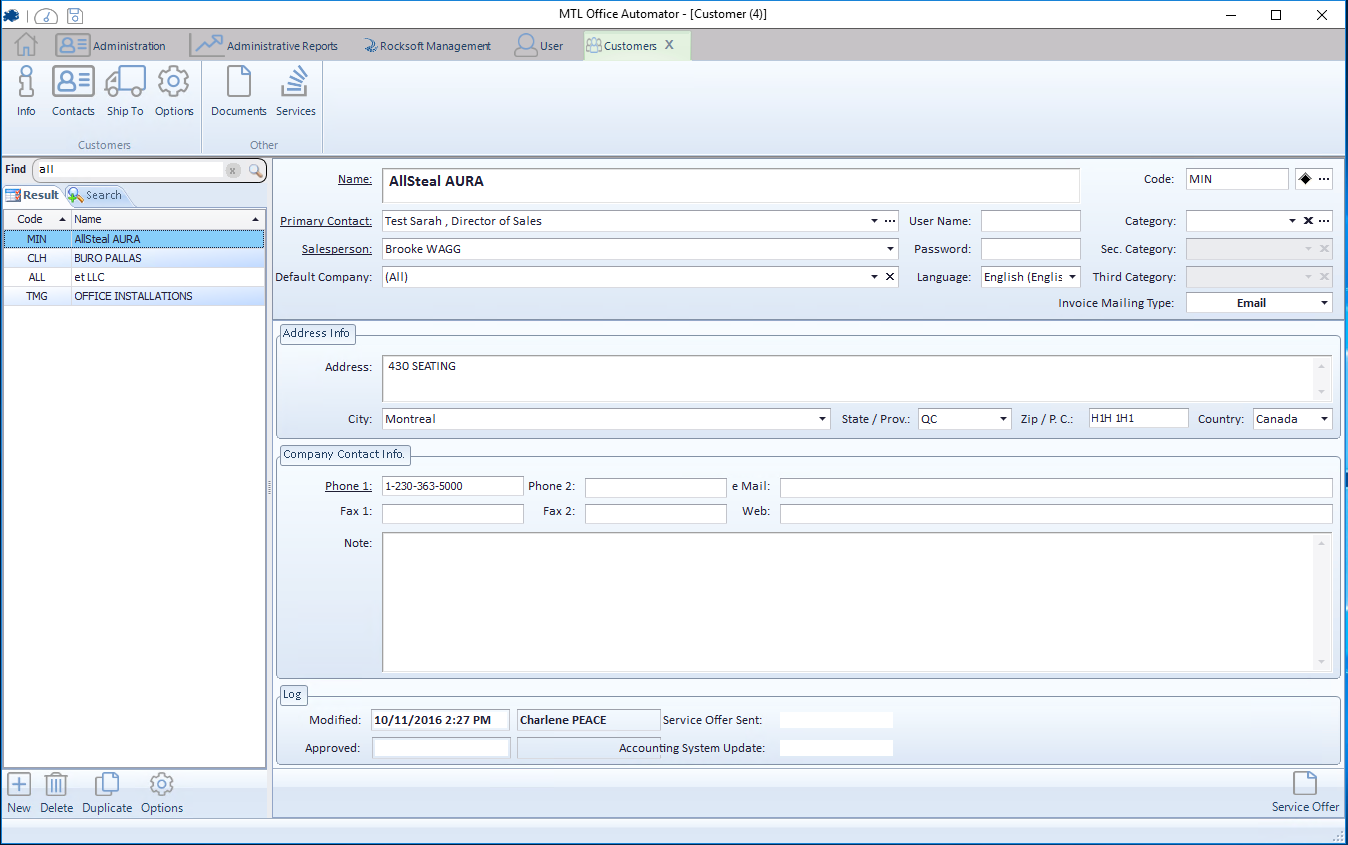
Automator uses the same structure and patterns between all its different sections : Customers, Projects, etc. We’ll see an example on how the sections are working so we can understand the behavior behind Automator. To do so, we’ll take the Customers section as an example.
Opening a new section
When you just opened Automator, you’ll see a blank gray page. The header will present you few sections you can open to add, edit and remove data in the system

When you click on a section (e.g.: Customers), it’ll open a tab at the complete top of the application. You’ll see that the sub-tabs are now related to Customer’s stuff (Info, Contacts, Ship to, etc.). If you want to come back to the initial header sections to open, for example the section Projects, you just have to click on the Home icon.
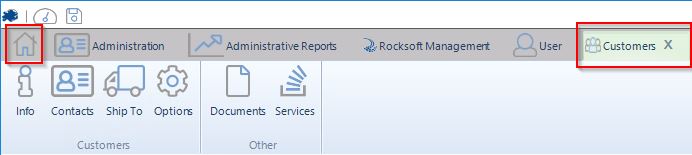
** NOTE : If you already opened a tab once (e.g.: Customers), don’t open it twice, it’ll only make the system heavier to load between every actions. Try to re-use the same tab and, when you’re done with it, just close it using the X.

Search, add/edit and remove data in a section
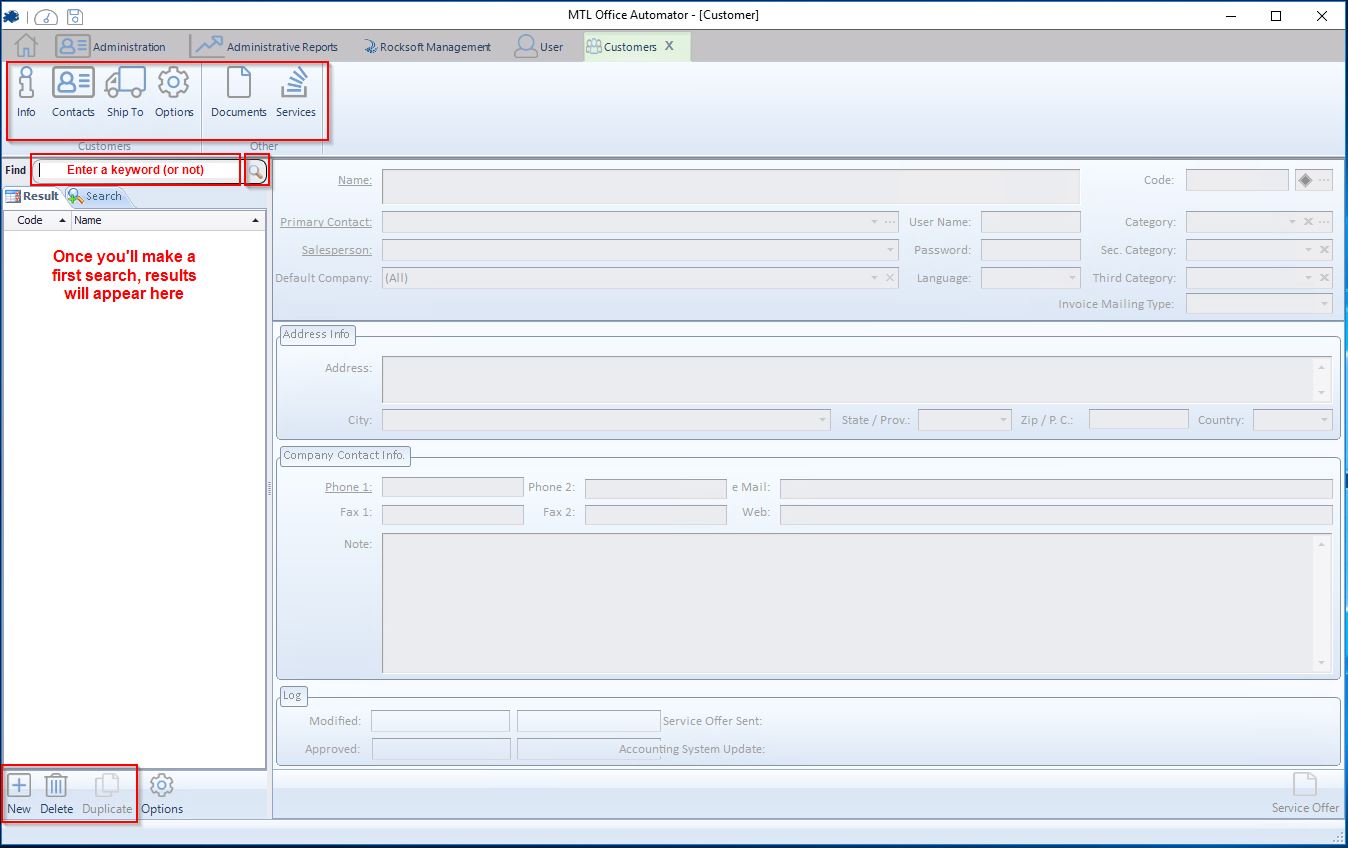
Once you opened a section, you’ll see few things :
– The sub-tabs related to the sections (Info, Contacts, Ship To, etc.);
– A Find field and a magnifier icon
– Buttons at the bottom left to Add, Delete and Duplicate data records
Search for data in a section
To search for some results (e.g.: you are looking for every customers having “all” in their name), add the keywords in the Find field and click on the magnifier. Note : To get the whole list, you leave the field empty and click on the magnifier.