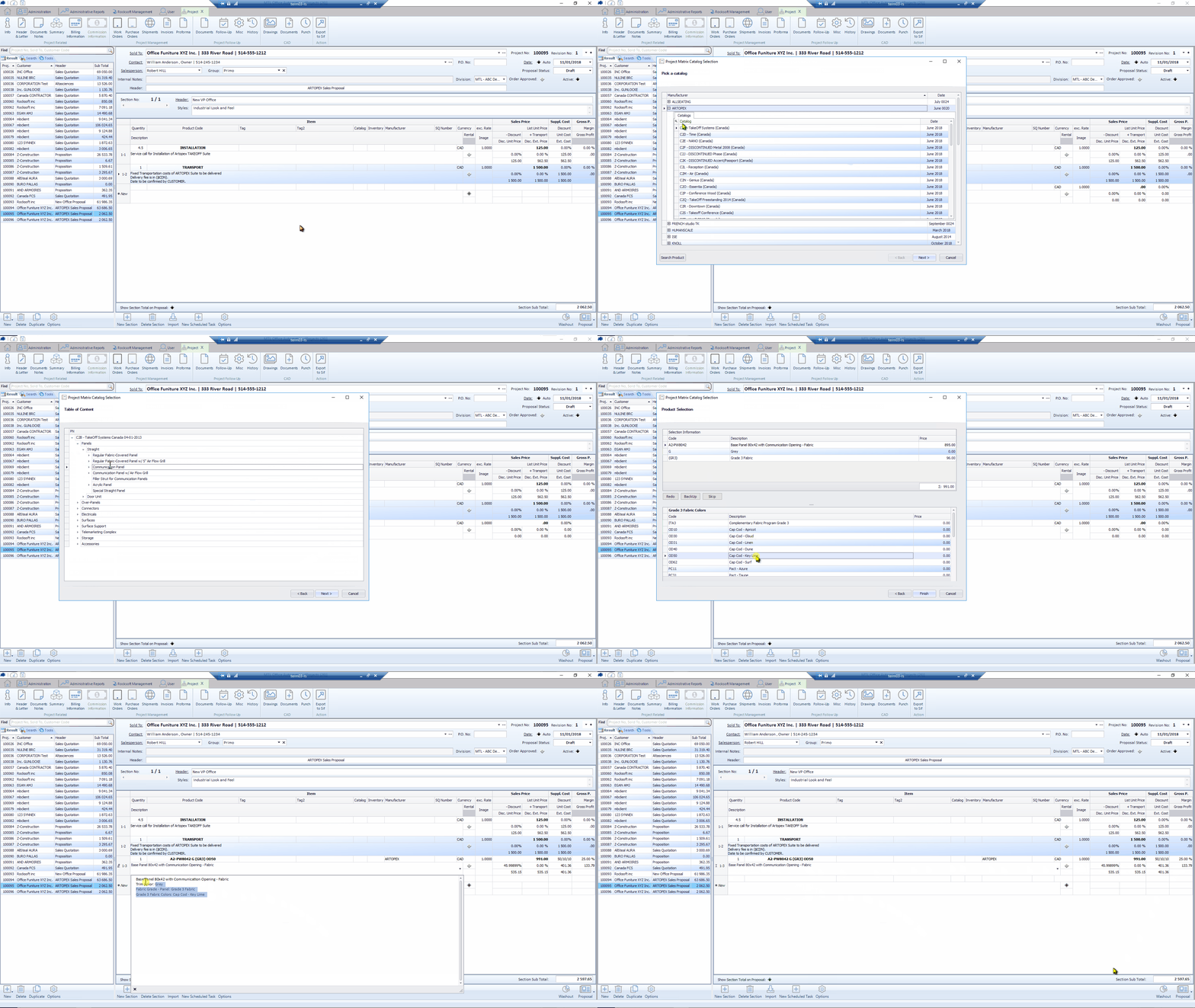
Add catalogs items
Introduction
Automator is using Project Matrix’s catalogs. That means we can install any of the 130 available catalogs provided on ProjectMatrix.com. If you’d like us to add a catalog, just send us a request.
Let’s now see how we can use the Catalog reader tool to add an item in a quote.
There’s is a video at the bottom of this topic to give you an overview of the process.
Using the catalog reader
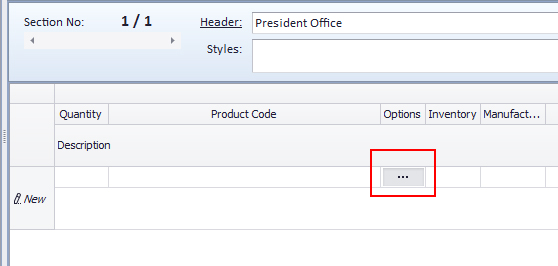
In your quote, click on the 3rd field : 3 dots will appear and the catalog reader will open.
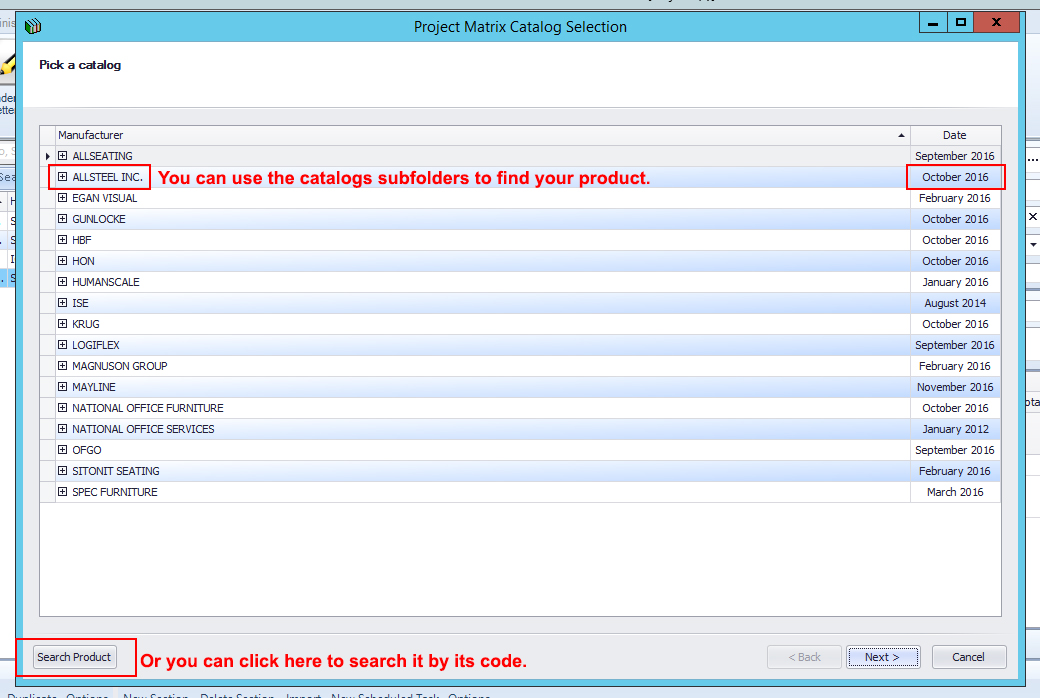
The approach is quite similar as Project Matrix. You have the choice between :
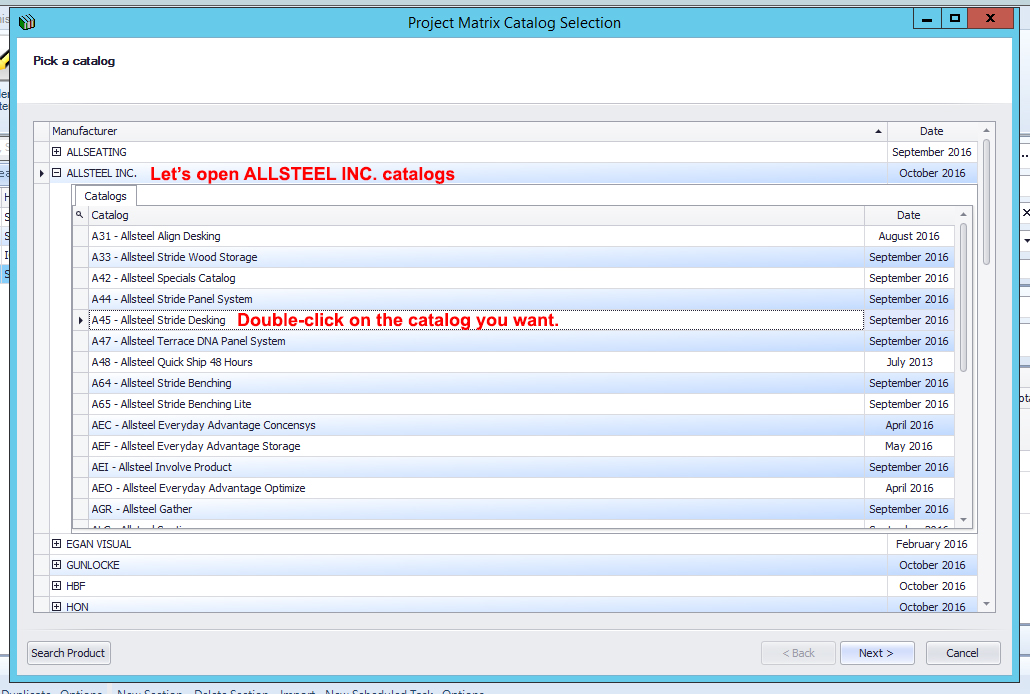
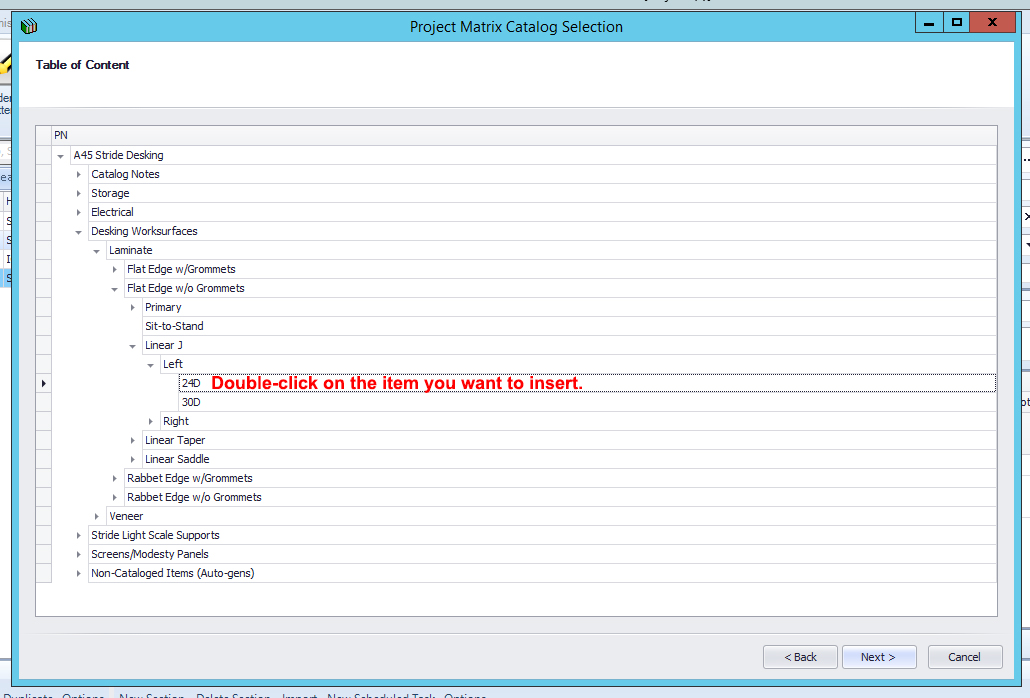
1. Going down through the catalogs folders until you hit the product you want to insert
2. Using the Search Product button to search for a specific code in catalogs.
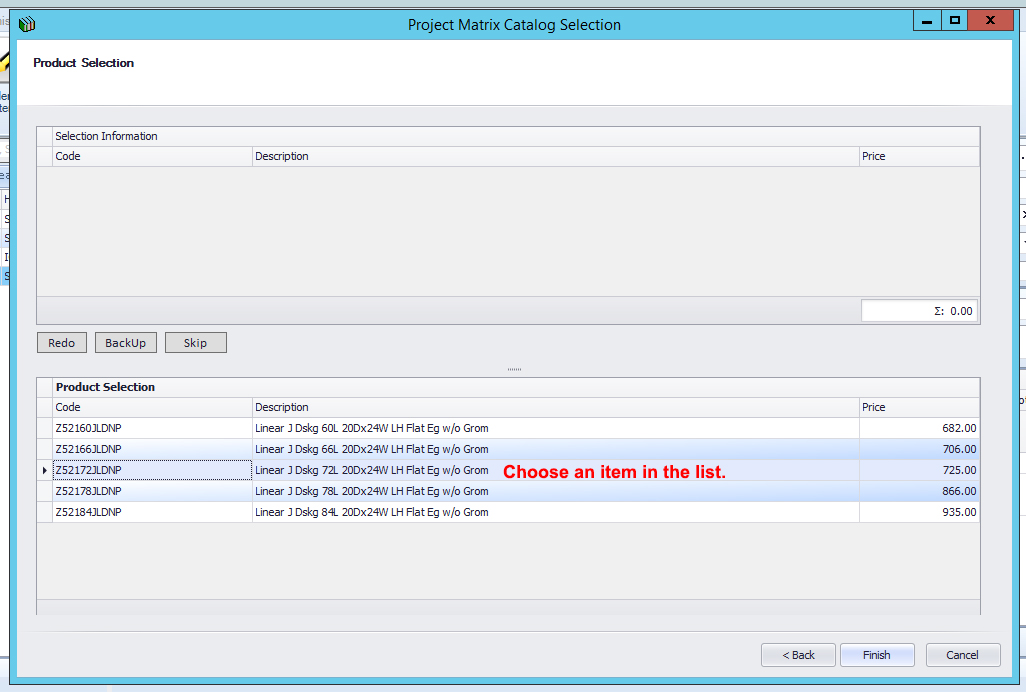
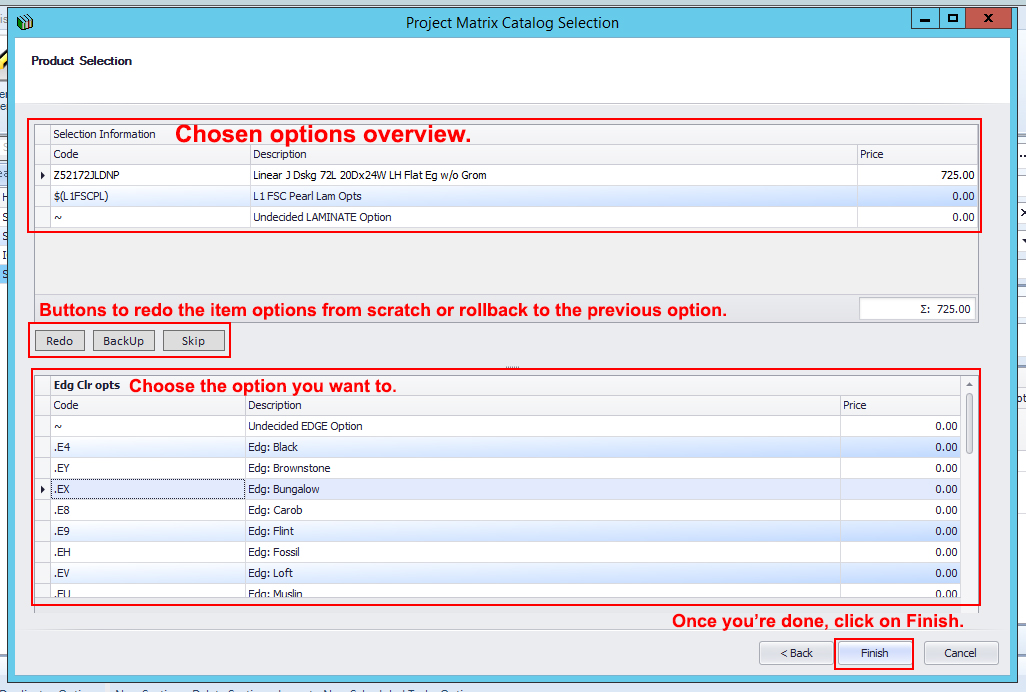
In this example, we’ll use the catalogs tree to select an item and build its options.
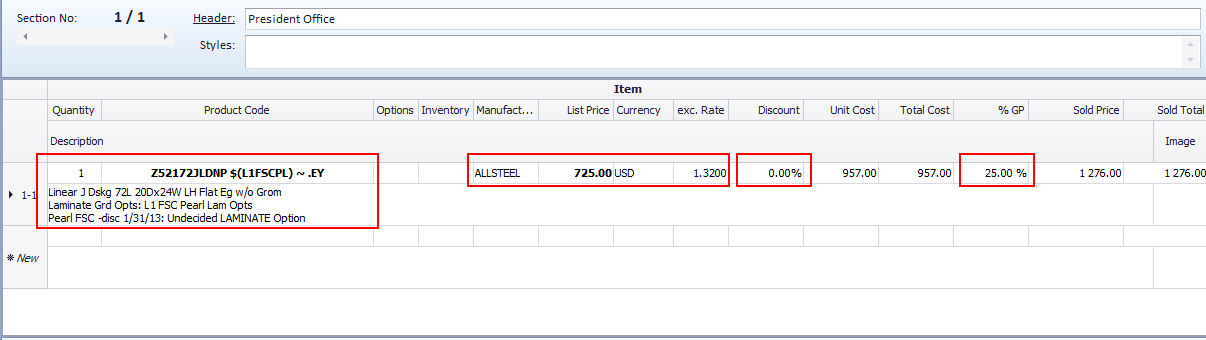
Let’s now see how the item has been inserted into the quote. We can notice that :
– The product code and its full options description appears.
– The manufacturer (AllSteel), its currency conversion rate (USD x1.32) and discount (0%) are automatically applied.
– The default GP (25%) is automatically applied.
Now, the user can do the following :
– Change the quantity.
– Change manually the description of the product (you can short it, translate it, etc.)
– Change the Discount and GP.
– Change the item and its option, by clicking on the 3rd field (…) again.
Important notice : Take in note that editing an item through the catalog reader will reset the Discount and %GP to their default values. When you do so, double-check and get sure you have the right values in those fields. We might change this behavior in a next release (we’ll let you know).
You can click the video below to see a larger version of it.