
Administrative Reports – General Rules and information
When Office Automator is open, you will find all of the reports listed in the Administrative Repots tab at the top – left hand side of the screen. It is the third tab from the left named ‘’Administrative Reports’’
Here all the reports are categorized by Report Type, starting with the Project related reports.

Most reports allow the filtering of specific parameters on each requested report. Some of these parameters can only be applied filters, while others can affect the display of the information (Such as the “sorting order”, or “group by” parameters), or it can even offer different layout types.
Except when specifically specified, no report will show taxes (Purchasing or Sales)
Multiple parameter example :
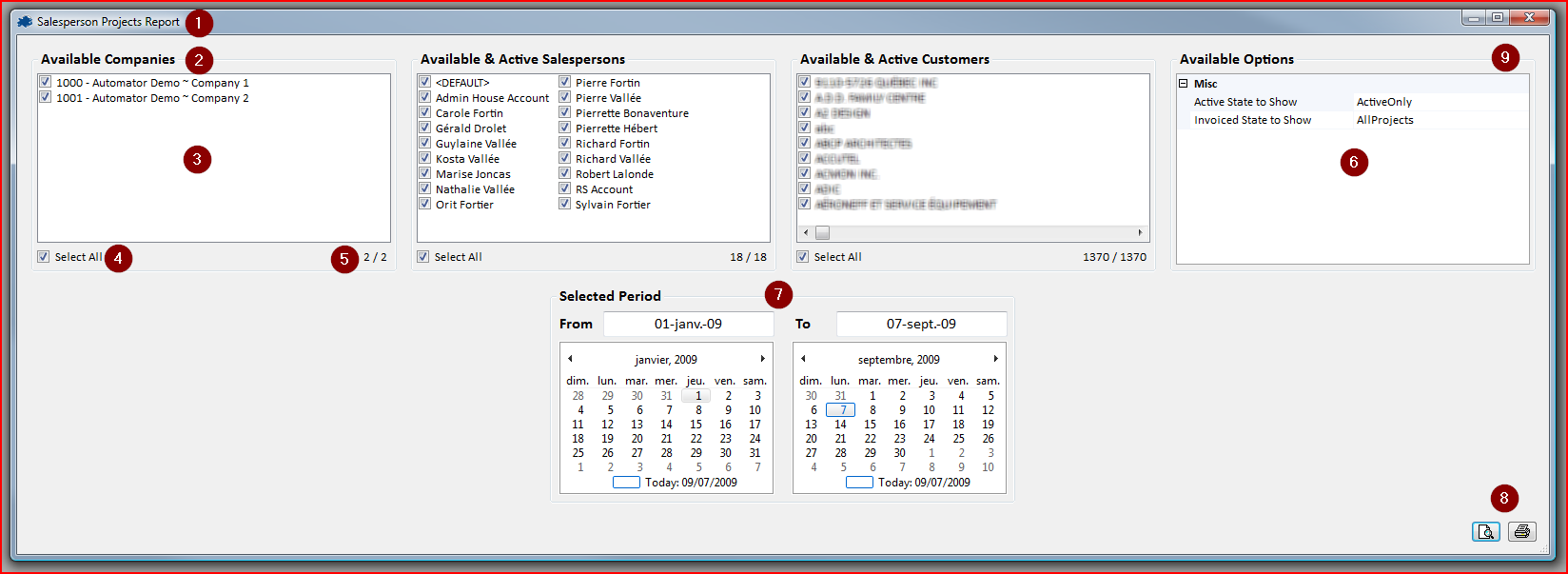
1- Report title.
2- Title of the block of parameters.
3- List of items available in the section.
4- Selectable box to select/unselect all items in that box. When items are in a grey state, this indicates that some items are selected.
5- Selection of the number of items available and selected.
6- Example of an option box.
7- Calendar selection box, basically allows to pick and choose between selected dates for a specific type of report. The beginning date normally represents the beginning of your current fiscal year.
8- Buttons to show in preview mode and print the report.
9- Normal Windows action buttons for the window. (Maximize, Minimize and close)
